You’ve been told that technical SEO is the developer’s domain. That fixing it means submitting tickets, waiting on sprints, and hoping the changes don’t break something else.
That’s partially true some fixes do need a developer.
But the audit? Finding out what’s broken and what’s costing you rankings? A technical SEO audit doesn’t require a single line of code. You can run a complete technical SEO audit today, using only free tools, in about two hours.
Here’s exactly how to do it.
Table of Contents
Why Technical SEO Problems Stay Hidden
Here’s what makes technical SEO issues different from every other ranking problem: they’re invisible.
Your site looks fine. Pages load. Content is there. Titles are optimised. And still rankings that should exist, don’t. The reason is almost always something underneath the surface stopping Google from doing its job.
Google has to find your pages, read them, render them, and decide they’re worth ranking. Each of those steps can fail quietly no error message on your screen, no warning in your analytics. Your traffic just… plateaus.
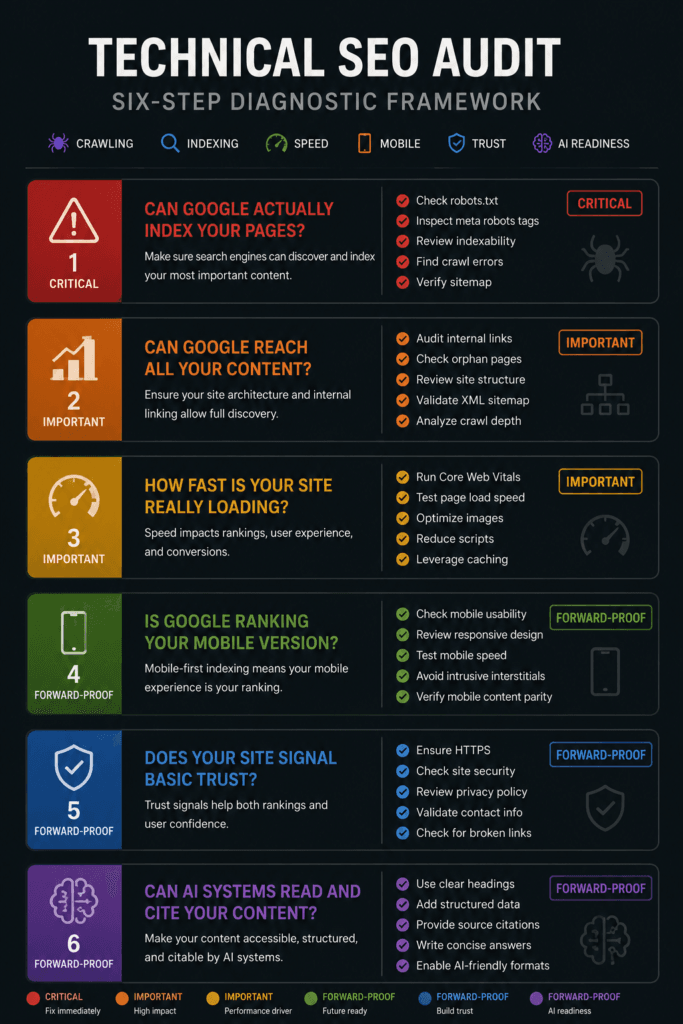
A technical SEO audit checks each failure point systematically. Not guessing. Not running one tool and declaring it done. The technical SEO audit process covers each layer crawlability, indexation, speed, mobile experience, trust signals, and AI readiness in order of impact.
If your on-page foundations are already in place (if not, our on-page SEO guide covers every step), this is the layer where your rankings actually live or die.
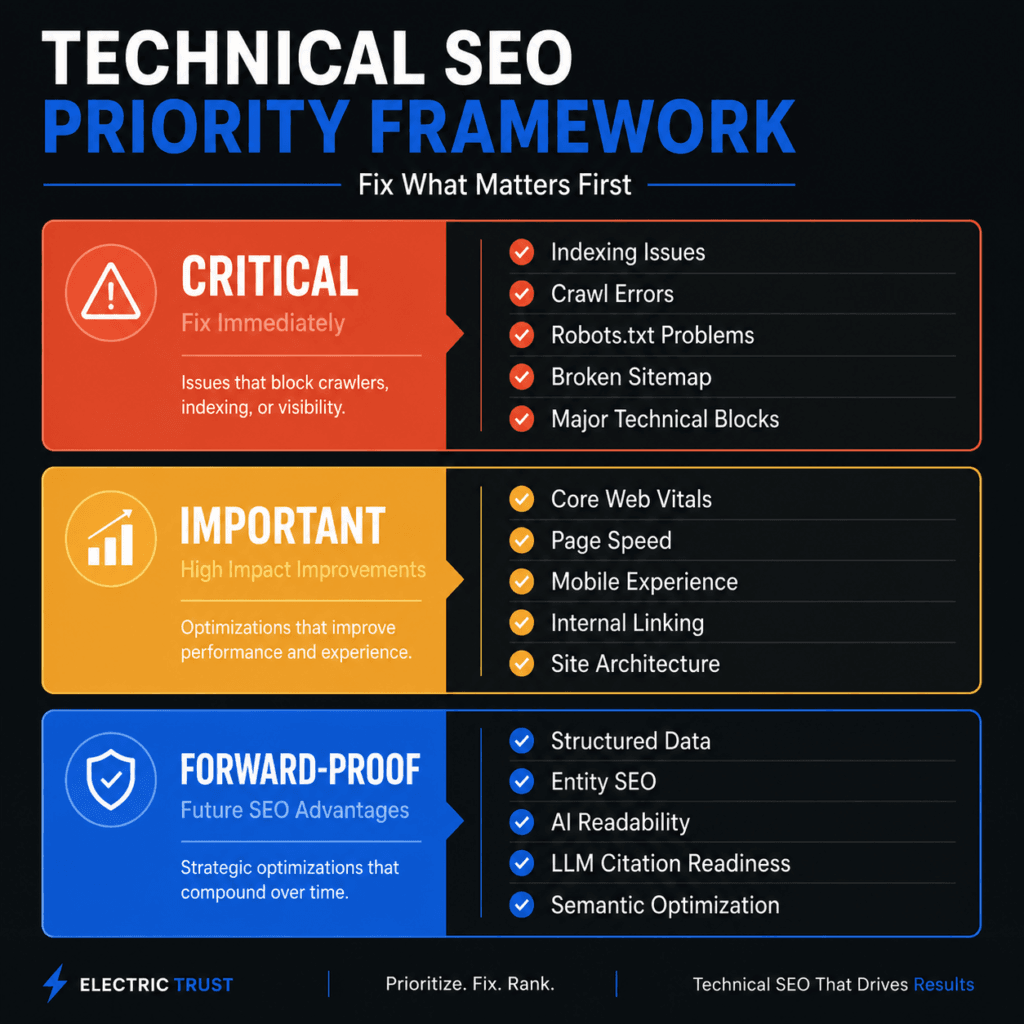
The Priority Framework: What to Fix First
Not all technical issues carry equal weight. A missing alt tag and a site-wide robots.txt block are both “technical SEO problems.” One is a minor optimisation. The other makes your entire site invisible to Google.
Before running anything, understand the priority structure:
Tier 1 : Critical (fix within 48 hours): Issues that prevent Google from finding or indexing your pages. These are actively costing you rankings right now. No amount of content or link building overrides them.
Tier 2 : Important (fix within 2 weeks): Issues that slow your site, hurt user experience, or reduce ranking potential. They matter significantly but they won’t destroy you overnight.
Tier 3 : Forward-Proofing (schedule next month): Issues becoming ranking signals as Google and AI search evolve. This is the 2026 layer most technical audits ignore entirely.
Run the six checks below in this order. That’s the order of impact.
Check 1: Is Google Actually Indexing Your Pages?
Tool: Google Search Console → Indexing → Pages
This is the foundation of every technical SEO audit. Open Google Search Console, navigate to Indexing → Pages, and examine the “Why pages aren’t indexed” section.
You’re looking for four statuses:
Crawled – currently not indexed: Google read your page but chose not to include it. Usually signals thin content, too-similar content to another page, or a quality problem Google didn’t like.
Discovered – currently not indexed: Google knows the page exists but hasn’t crawled it yet. Often means the page is buried too deep in your site structure or has no internal links pointing to it.
Excluded by noindex tag: Intentional or accidental. This is a Tier 1 emergency if it covers pages you want ranking. The most dangerous version: a developer leaves a “noindex” tag from a staging environment and forgets to remove it after launch. The page appears to work perfectly. Google never sees it.
Blocked by robots.txt: The file that controls where Googlebot can and can’t go. One wrong line can block entire sections of your site. Accessible at yourdomain.com/robots.txt — read every “Disallow” rule and confirm it’s deliberate.
Your only job in this check: confirm every page that should be indexed is indexed, and every page being excluded is being excluded on purpose.
Check 2: Can Google Reach All Your Content?
Tools: Google Search Console → Settings → Crawl Stats + Ahrefs Webmaster Tools free crawl
Indexing and crawlability are related but different. Google can know a page exists without being able to read it properly. This check examines the access layer.
In your robots.txt file, look for any “Disallow: /” instruction that covers pages you want Google to access. A blanket disallow is a complete site-wide crawl block. It happens most often after redesigns, when a developer copies a staging configuration to production and forgets to update the file.
The problem most site owners miss is orphan pages. Google finds your content by following links. If a page has no internal links pointing to it not from your navigation, not from blog posts, not from anywhere Google may never reach it, even if it exists in your sitemap.
Set up a free Ahrefs Webmaster Tools account and run the Orphan Pages report. Every orphaned page needs at least one contextual internal link from a relevant page on your site.
Redirect chains are also worth flagging: when a page redirects to another page that redirects again (A → B → C instead of A → C directly). These bleed link equity and slow crawling. Fix them to point directly to the final destination.
Check 3: How Fast Is Your Site Really Loading?
Tool: Google PageSpeed Insights
Core Web Vitals are Google’s official performance metrics and confirmed ranking factors. According to Backlinko’s 2026 Google Ranking Factors report, sites that pass all three Core Web Vitals metrics show a measurable ranking advantage over competitors with similar content and backlink profiles.
The three metrics your technical SEO audit needs to check:
LCP (Largest Contentful Paint): How long the main content usually your hero image or H1 takes to load. Must be under 2.5 seconds.
INP (Interaction to Next Paint): How fast your page responds when a visitor taps or clicks. Must be under 200 milliseconds.
CLS (Cumulative Layout Shift): How much the layout moves around while loading. Must be under 0.1. This is what causes text to jump mid-read when an image loads late.
One critical rule: run your top five content pages through PageSpeed Insights not just the homepage. Your homepage is almost always the fastest page on your site because it gets the most attention. The pages driving actual search traffic are consistently slower.
What you can fix without a developer:
- Compress images using TinyPNG free, no account required
- Convert to WebP format using a free WordPress plugin (Imagify or ShortPixel)
- Remove unused plugins every active plugin adds JavaScript weight to every page load
What to flag for a developer:
- Render-blocking scripts loaded in the page
<head> - Server response time (TTFB) over 800ms this is a hosting or caching problem
- Unoptimised third-party scripts like chat widgets, tracking pixels, and ad networks
Check 4: Is Google Ranking Your Mobile Version?
Tool: Google Search Console → Experience → Mobile Usability
Google uses the mobile version of your site to crawl, index, and rank your content. Not desktop. Mobile always. This is mobile-first indexing, and it has been standard since 2019.
The practical implication is significant. If your mobile site is missing content that appears on desktop, Google ranks you without it. If your mobile layout has usability errors, those errors affect your Core Web Vitals scores, which affect your rankings.
Open Search Console → Experience → Mobile Usability. Any flagged errors are Tier 1.
The most common issues are “clickable elements too close together,” “text too small to read,” and “content wider than screen.” Most of these don’t require a developer to fix they’re resolved in theme settings or by removing aggressive pop-ups that behave differently on small screens.
Check one more thing while you’re here: does your mobile site display the same content as your desktop site? If you’re serving a stripped-down mobile version with fewer words, fewer sections, or missing schema, Google is ranking you on that stripped-down version.
Check 5: Does Your Site Signal Basic Trust?
Tool: Browser bar + Google Search Console → Security & Manual Actions
Two quick Tier 1 checks that take under five minutes.
HTTPS: Load your site. Is there a padlock in the browser bar? If not if Chrome shows “Not Secure” you’re still on HTTP. Google flags this. More importantly, visitors see the warning before they read a single word.
Automatic redirect: Type your domain with http:// manually. Does it redirect to https:// automatically? If not, you’re splitting your authority between two versions of the same site. Link equity goes to both. Google indexes both. You get credit for neither properly.
Manual Actions: In Google Search Console, check Security & Manual Actions. A manual action is a human-reviewed penalty rare, but catastrophic. If one exists on your site, every other fix is secondary until it’s resolved.
Mixed content: Even with HTTPS enabled, some pages load resources (images, scripts, stylesheets) over HTTP. This is called mixed content, and it breaks the padlock. Use Chrome DevTools (open the browser console on any page) to check mixed content warnings appear as yellow cautions.
Check 6: Can AI Systems Read and Cite Your Content?
Tool: Google Rich Results Test
This is the 2026 layer most technical SEO guides haven’t caught up with yet and the one changing fastest.
AI search Google’s AI Overviews, Perplexity, ChatGPT builds its answers from content it can confidently interpret and attribute. Structured data (schema markup) is how you tell those systems what your content actually is. Not what it looks like. Not what keywords it contains. What it is an article, a guide, a set of FAQs, from a specific author, on a specific date.
Without structured data, AI systems may read your content but won’t cite it. With it, you become attributable. Your expertise is declared in machine-readable terms. Your authorship is verifiable. You’re not just content you’re a source.
At a minimum, every site should have:
Organization schema: Who you are, what you do, how to contact you. Tells both Google and AI systems that you’re a real, verifiable entity.
Article or BlogPosting schema: On every blog post, including author name, date published, and date modified. Author schema linked to a real author profile LinkedIn or an author bio page is increasingly important as Google validates E-E-A-T externally.
FAQ schema: On any page with question-and-answer content. Even though Google deprecated FAQ rich results for general websites in 2023, the schema still signals Q&A structure to AI systems which are the ones increasingly routing search queries.
Run your key pages through the Google Rich Results Test to see what’s currently detected. If your blog posts show no schema, add Rank Math or Yoast SEO both implement basic Article schema automatically on WordPress without writing a single line of code.
At Saga Creative Studios, we build SEO strategies that treat technical health and AI citability as a single connected system because in 2026, they are.
Your Action List: What to Fix and When
You’ve run the six checks. Here’s how to prioritise what you found:
Fix within 48 hours:
- Any pages accidentally blocked by noindex tag or robots.txt
- Missing HTTPS / missing HTTP-to-HTTPS automatic redirect
- Any manual actions flagged in Search Console
- Mobile usability errors listed under Experience in Search Console
Fix within 2 weeks:
- Core Web Vitals failures start with LCP, it has the highest direct ranking impact
- Orphan pages with no internal links (add at least one contextual link from relevant content)
- 404 errors on pages that used to hold backlinks (set up 301 redirects to live alternatives)
- Redirect chains flatten them to point directly to the final destination
Schedule for next month:
- Image compression and WebP conversion across all existing images
- Schema markup implementation across all blog posts (Article + FAQ schema)
- Full structured data validation via Rich Results Test for all key page types
One important note: your technical SEO audit is not a one-time task. Run it after every major site change redesign, CMS migration, plugin update, or significant content addition. Any of these can silently introduce new technical issues that only show up weeks later in rankings.
Technical SEO Audit: Frequently Asked Questions
Do I need a developer to run a technical SEO audit?
No. The audit identifying and diagnosing issues can be completed entirely with free tools: Google Search Console, Google PageSpeed Insights, the Rich Results Test, and Ahrefs Webmaster Tools (free tier). Some of the fixes that follow will need developer involvement, but the diagnostic process itself doesn’t.
What’s the difference between “crawled not indexed” and “discovered not indexed”?
“Crawled not indexed” means Google read your page but chose not to include it in search results. Usually a quality or duplication signal the content needs to be improved or consolidated. “Discovered not indexed” means Google knows the page exists but hasn’t read it yet. Usually caused by poor site structure or no internal links pointing to the page. Different problems, different fixes.
How often should I run a technical SEO audit?
For most sites, running a full technical SEO audit every three to six months is the right cadence. Run one immediately after any major site change a redesign, platform migration, or large-scale content restructure. These are the moments when technical issues are most commonly introduced without anyone noticing.
The Bottom Line
Technical SEO is the foundation your content stands on. If the foundation has cracks blocked pages, slow load times, missing HTTPS, no structured data no amount of writing or link building fixes it. It just hides the damage for longer.
The technical SEO audit above takes two hours. The fixes take longer. But you cannot fix what you haven’t found.
Your ranking potential is already built into the content and authority you’ve developed. Technical issues are the only barrier between that potential and the rankings it should produce.
Stop guessing. Start auditing.
For a full picture of how off-site signals compound your technical foundations, read our off-page SEO guide for 2026.
Founder of Saga Creative Studios. Nithish helps D2C and local brands in Bangalore grow on Instagram through reels, paid ads and content that converts.